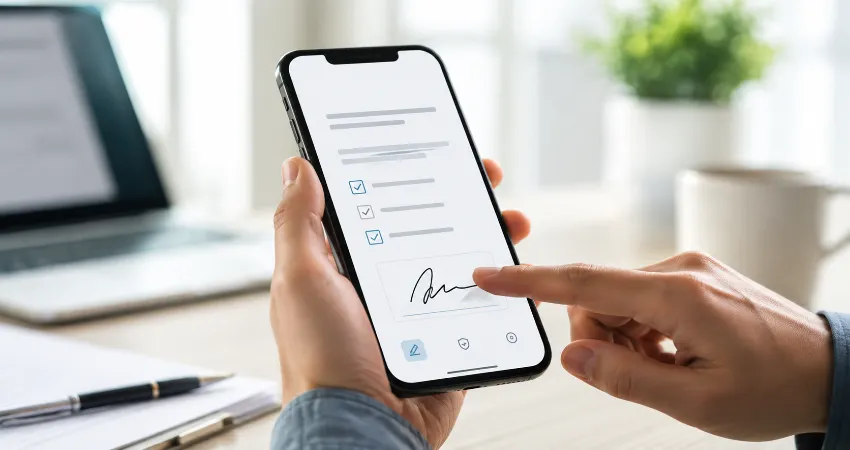
Signing a document no longer requires a printer, scanner, desktop computer, or a trip back to the office. A modern smartphone can handle most everyday document-signing tasks from start to finish. With the right e-signature app, you can open a PDF or other supported file, review it, add your signature, complete required fields, and return the finished document within minutes.
The important part is choosing an app that does more than place a picture of your signature on a page. A useful mobile signing tool should make the document easy to review on a small screen, keep a reliable record of the signing process, protect the file, and let you retrieve the completed copy later. Major services such as Docusign, Adobe Acrobat, SignNow, and Zoho Sign now provide mobile-oriented workflows for signing and managing documents.
This guide looks at e-signature apps from a practical mobile-user perspective. Instead of focusing only on feature lists, the goal is to explain which features actually matter when you are reviewing an important document on a phone and how to avoid common mistakes before tapping the final confirmation button.
What Is an E-Signature App?
An e-signature app is software that allows a person to electronically sign documents and, depending on the service, send documents to other people for signature, track their status, and retain completed copies. Signatures may be created by drawing with a finger or stylus, typing a name in a signature style, or using another supported signing method. Adobe, for example, supports drawing a signature or using an image, while mobile-focused platforms can also provide document management and signing-request workflows.
There is also an important distinction between a simple electronic signature and more advanced digital-signature technologies. The appropriate method depends on the document, organization, industry, and jurisdiction. The European Commission, for example, distinguishes between simple, advanced, and qualified electronic signatures under the eIDAS framework.
Why Signing Documents on a Phone Is So Useful?
The biggest advantage is not merely speed. It is removing unnecessary steps. A traditional workflow may involve downloading a document, finding a printer, signing it, scanning the completed pages, checking the scan, and emailing the new file. A mobile e-signature workflow can reduce that process to reviewing, completing, signing, and sending the same digital document.
This can be especially valuable for remote workers, freelancers, small-business owners, field staff, students, property professionals, and anyone who receives time-sensitive paperwork while away from a computer. Docusign’s mobile service, for example, supports uploading, signing, sending, and managing documents from iPhone, iPad, and Android devices, while Zoho Sign allows users to sign, send, track, and manage documents from Android devices.
Best Types of E-Signature Apps for Mobile Users
Docusign
Docusign is a strong choice when document signing is part of a broader agreement workflow rather than an occasional PDF edit. Its mobile application is available for iPhone, iPad, and Android and is designed to upload, sign, send, and manage agreements from mobile devices. Documents and activities can also synchronize across devices, which is useful when you begin reviewing something on your phone but prefer completing another part of the workflow on a computer.
Adobe Acrobat and Acrobat Sign
Adobe is particularly practical for people who already work heavily with PDF files. Acrobat’s mobile workflow can support e-signing as well as requesting signatures from others. Adobe’s current mobile documentation describes adding recipients, assigning roles, placing signature fields, and receiving confirmation after a signature request is completed. Some signature-request capabilities require an eligible subscription, so users should check the current plan requirements before choosing the service for frequent business use.
SignNow
SignNow is designed around electronic-signature workflows on both mobile and web platforms. Its Android application supports signing documents, collecting signatures, and managing document workflows directly from a phone. It also offers an in-person signing workflow in which a device can be handed to another person to review and sign a document, a useful feature for field operations, reception desks, service appointments, and other face-to-face situations.
Zoho Sign
Zoho Sign is worth considering for users who already rely on Zoho products or want flexible document-import options. Its mobile application can scan paper documents with a phone camera, import files from supported cloud-storage services, provide activity notifications, and handle mobile signing workflows. Zoho also documents offline signing for certain in-person situations, with synchronization occurring when connectivity returns.
Features That Matter More Than the App’s Popularity
When comparing e-signature apps, do not choose solely by download count or brand recognition. Start with your actual workflow. Check whether the app supports the file formats you regularly receive, provides clear mobile document previews, allows initials and dates to be placed accurately, keeps completed documents accessible, and offers appropriate signer authentication and activity records.
Cloud importing can also make a noticeable difference. If documents commonly arrive through Google Drive, OneDrive, Box, or another storage service, direct importing reduces the number of times files must be downloaded and re-uploaded. Zoho Sign, for example, documents integrations with several cloud-storage services, while other major signing platforms provide their own cross-device and document-management workflows.
How to Sign a Document Straight From Your Phone?
The exact buttons vary between apps, but the practical workflow is usually similar. Download or open a trusted e-signature application, import the document, and read the complete file before editing anything. Move carefully through every page rather than jumping directly to the signature field. Once you understand the document, complete the required text, date, checkbox, initial, and signature fields.
Create your signature using the method offered by the app, position it carefully, and check the document again before finalizing it. After completion, retain a copy in a location you control. This final step is easy to overlook, yet having access to the exact completed version can be important if questions arise later.
A Practical Mobile-Signing Rule: Review First, Sign Second
The greatest mobile-signing risk is often not the signature technology itself. It is the small screen. Long contracts can contain details several pages away from the signature field, and quickly scrolling to the highlighted boxes can make it easy to miss dates, fees, renewal provisions, names, attachments, or other important information.
A useful habit is therefore to separate reviewing from signing. First read the document without entering anything. Then confirm names, dates, amounts, blank areas, attachments, and your responsibilities. Only after that should you begin filling fields and adding a signature. For an especially important document, viewing it on a larger screen before completing the mobile signature may be more comfortable.
Are Electronic Signatures Legally Valid?
Electronic-signature laws depend on jurisdiction and on the type of transaction involved. In the United States, the federal ESIGN framework was established to give legal validity and effect to electronic records and signatures in covered commerce while retaining important consumer protections. The FTC has explained that electronic contracting can have legal effect while certain consumer disclosures and consent requirements still apply.
Within the European Union, eIDAS provides the framework for electronic signatures. The European Commission states that an electronic signature cannot be denied legal effect solely because it is electronic, while qualified electronic signatures have the equivalent legal effect of handwritten signatures across EU Member States. Requirements can still vary by document and use case, so highly regulated or unusually important paperwork deserves jurisdiction-specific review.
Security Tips Before Signing Anything on Your Phone
Use the official application or website of the signing provider rather than installing software from an unfamiliar link. Keep your phone protected with a screen lock and current system updates. If an unexpected signature request arrives, confirm the sender independently before opening sensitive documents. Never assume that a professional-looking email automatically proves that a document is legitimate.
Also verify the completed file after signing. Check that your signature appears only where intended and that no important fields remain empty. If the platform provides completion records or an audit history, retain them with the signed document when the transaction is important.
FAQs About Mobile E-Signature Apps
1. Can I sign a PDF directly from my smartphone?
Yes. Modern e-signature applications can import or open PDF documents and allow you to complete signature and other required fields directly on a smartphone. Some platforms also support additional file formats that are converted into a suitable signing format after upload. Zoho Sign, for example, documents support for PDF, PNG, DOCX, and XLSX uploads in its signing workflow.
2. Do I need a printer or scanner?
For a fully digital document, usually not. The file can normally be opened, completed, signed, and returned electronically. If the original exists only on paper, some apps can use the phone’s camera to scan it before signing. Zoho Sign includes a mobile document-scanning workflow for this purpose.
3. Can I create a signature by drawing with my finger?
Yes. Drawing is a common mobile signing method because a touchscreen naturally supports finger or stylus input. Adobe specifically allows signers to draw a signature and also provides other signature-creation options.
4. Can I send a document to another person for signature from my phone?
Many full e-signature platforms support this. Instead of merely signing your own copy, you can add recipients, identify where they need to sign, send the request, and track completion. Adobe documents this workflow in Acrobat mobile, while Docusign also provides mobile sending and agreement-management capabilities.
5. Are free e-signature apps enough for occasional use?
They can be, particularly when your main need is signing a limited number of personal documents. However, advanced functions such as requesting signatures, team administration, specialized authentication, integrations, or higher-volume workflows may require a paid plan. Always review the provider’s current plan limits rather than assuming every mobile feature is included without charge.
6. Can I sign documents when I have no internet connection?
This depends on the application and signing method. Many workflows require connectivity to retrieve, authenticate, send, or synchronize documents. Some platforms provide limited offline functionality. Zoho Sign, for example, documents offline capability for certain in-person signing scenarios and synchronization after internet access returns.
7. Is typing my name the same as drawing my signature?
Both can function as electronic-signature methods in supported workflows, but legal effectiveness depends on the surrounding process, intent, applicable law, and document requirements rather than simply how visually similar the mark is to a handwritten signature. For documents with special legal or regulatory requirements, verify the required signature level before signing.
8. Should I keep a copy after signing?
Yes. Save or download the completed version whenever possible, especially for contracts, authorizations, employment paperwork, business agreements, or other important records. Keeping the completed document makes it easier to confirm exactly what was signed and can provide useful evidence of the agreement later.
9. What should I check before choosing an e-signature app?
Look beyond the signature button. Consider supported file types, mobile usability, document storage, authentication options, audit records, cloud integrations, cross-device synchronization, recipient management, and current pricing. The best app is the one that fits your actual document workflow rather than the application with the longest feature list.
10. Is a phone suitable for signing important contracts?
A phone can be an effective signing device, but the importance of careful review increases as the document becomes more consequential. Read every page, verify the sender, confirm all terms, check attachments, and retain the completed record. If a document is difficult to understand on a small display, reviewing it on a larger screen or obtaining appropriate professional advice before signing is the more sensible approach.
Conclusion
E-signature apps have turned smartphones into practical document-signing tools. Services such as Docusign, Adobe Acrobat, SignNow, and Zoho Sign can remove much of the printing, scanning, and manual file handling that once made signatures inconvenient.
The best choice is not necessarily the app with the most features, but the one that matches your document volume, security needs, integrations, and working style. Most importantly, treat mobile signing as a two-part process: understand the document first, then sign it carefully.